
octoprint_deploy
These files provide a simple bash script for quickly deploying multiple octoprint instances on a single computer (Ubuntu/debian based systems).
How to use
-
Install Ubuntu on computer of interest.
-
Install Octoprint. You can follow the directions here: https://octoprint.org/download/ or here: https://community.octoprint.org/t/setting-up-octoprint-on-a-raspberry-pi-running-raspbian/2337
-
Start up Octoprint for the first time to setup a base instance profile. The base profile will be edited in several places with
INSTANCEto allow modifications during deployment. -
During setup, edit the restart script:
sudo systemctl restart INSTANCE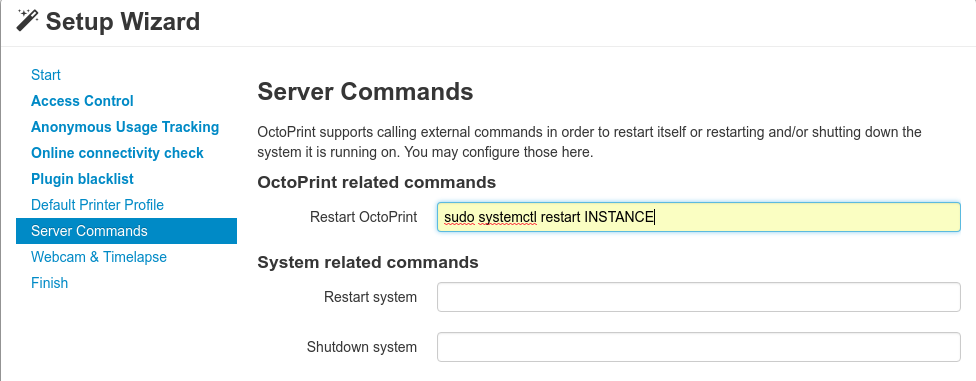
-
After the initial setup is done, reload the server and edit the Additional Serial Port field:
/dev/octo_INSTANCE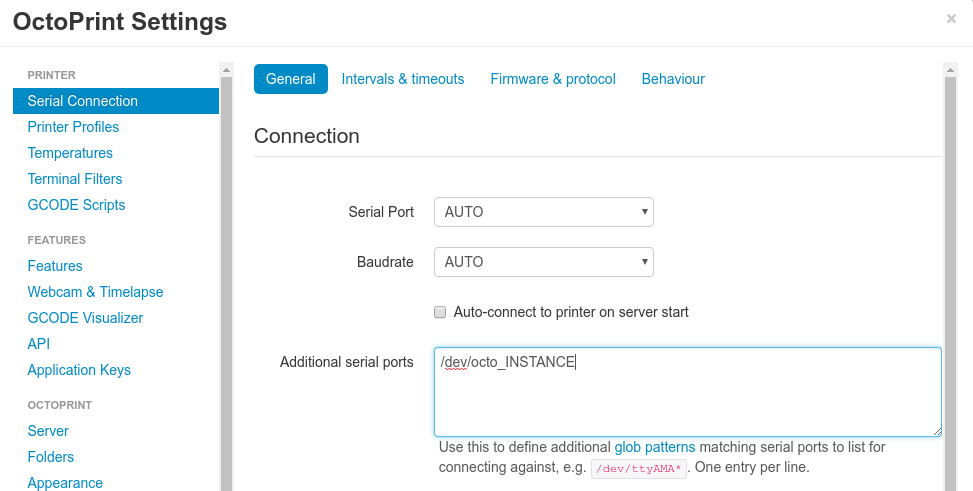
-
You can also edit the server name under apperance with:
INSTANCE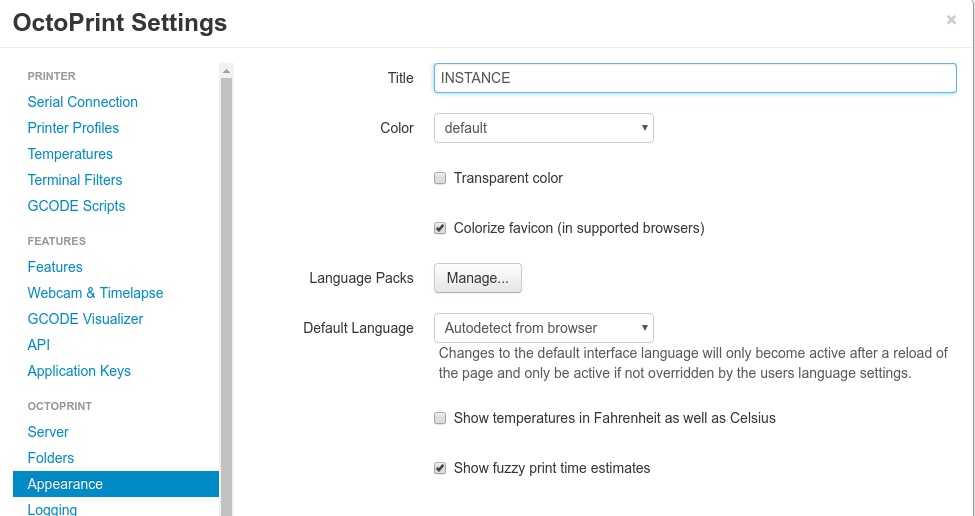
-
STOP your currently running octoprint server (Ctrl+C in the terminal you started is sufficient)
-
Make sure whichever printer you are installing for is not plugged in via USB
-
Go to wherever you downloaded octoprint_deploy:
$ cd octoprint_deploy -
Run the bash script:
$ sudo ./addnew_printer.sh -
And follow the instructions. Defaults are shown in brackets:


UNPLUG PRINTER FROM USB
Enter the name for new printer/instance:
printer01
Port on which this instance will run (ENTER will increment last value in /etc/octoprint_ports):
Selected port is: 5000
Octoprint Daemon User [paul]:
Octoprint Daemon Path [/home/paul/OctoPrint/venv/bin/octoprint]:
Octoprint Config Path [/home/paul/]:
Auto-detect printer serial number for udev entry?y
Plug your printer in via USB now (detection time-out in 2 min)
Serial number detected as: AL03M8MG
Octoprint instance template base folder [/home/paul/.octoprint]:
Do you want to proceed? y
This will do the following:
- Copy everything in ~/.octoprint to ~/.printer01 with the modifications
- Update udev rules so this printer will always be at port /dev/octo_printer01
- Create, start, and enable the service printer01 to control that octoprint instance.
Because each octoprint instance is coming from the same source files, any global modifications you make to octoprint (adding/removing plugins, updating octoprint) are all automatically applied to all of your instances and will take effect when you restart that instance.